Requirements for the local computer:
DaVinci Resolve Studio (the free version will not work)
Blackmagic Decklink or UltraStudio
wired internet connection
Requirements for the remote color grading computer:
DaVinci Resolve Studio (the free version will not work)
wired internet connection
1. Create a Blackmagic account:
https://cloud.blackmagicdesign.com/
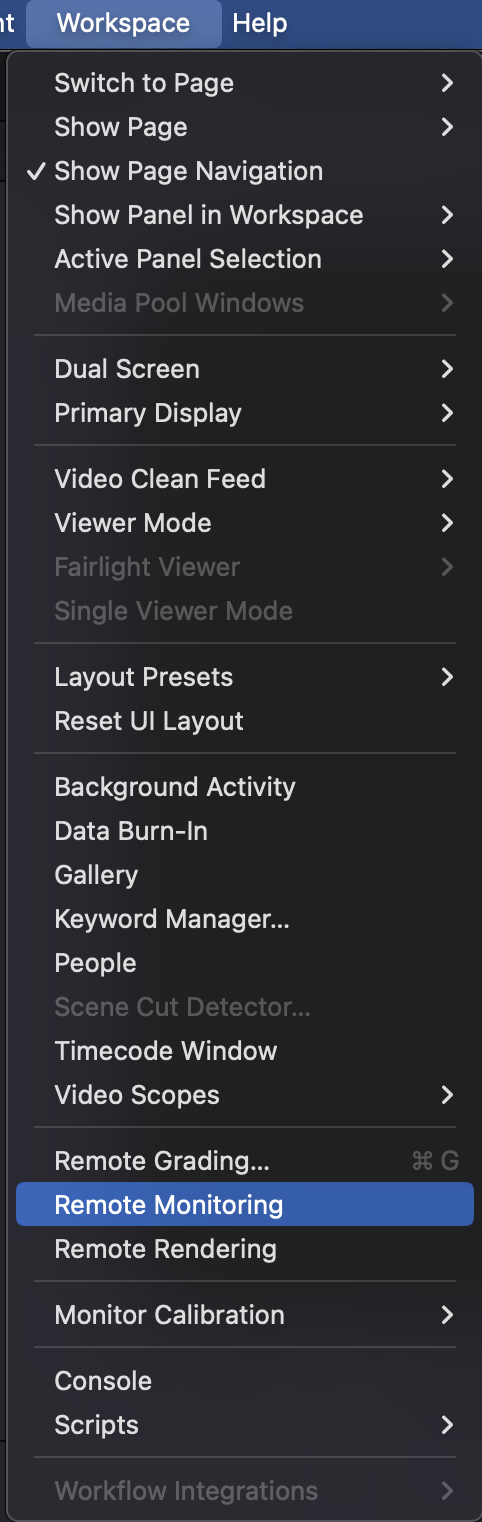
2. In the remote color grading computer, open the Resolve project, then click Workspace -> Remote Monitoring
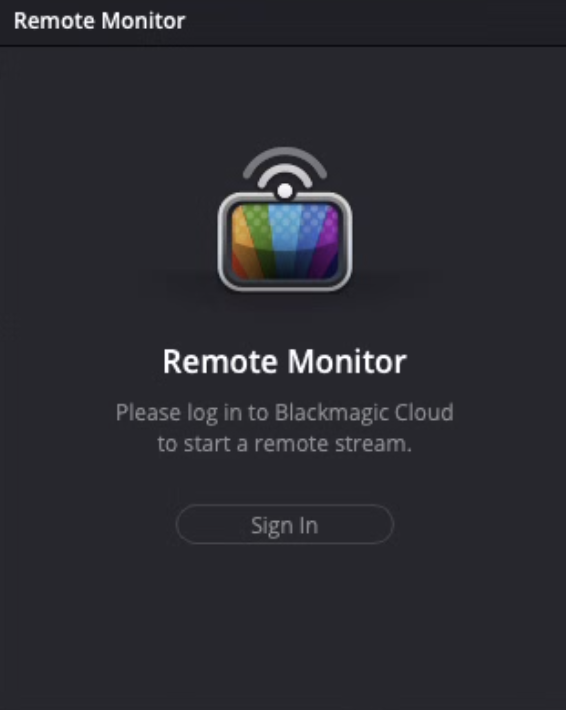
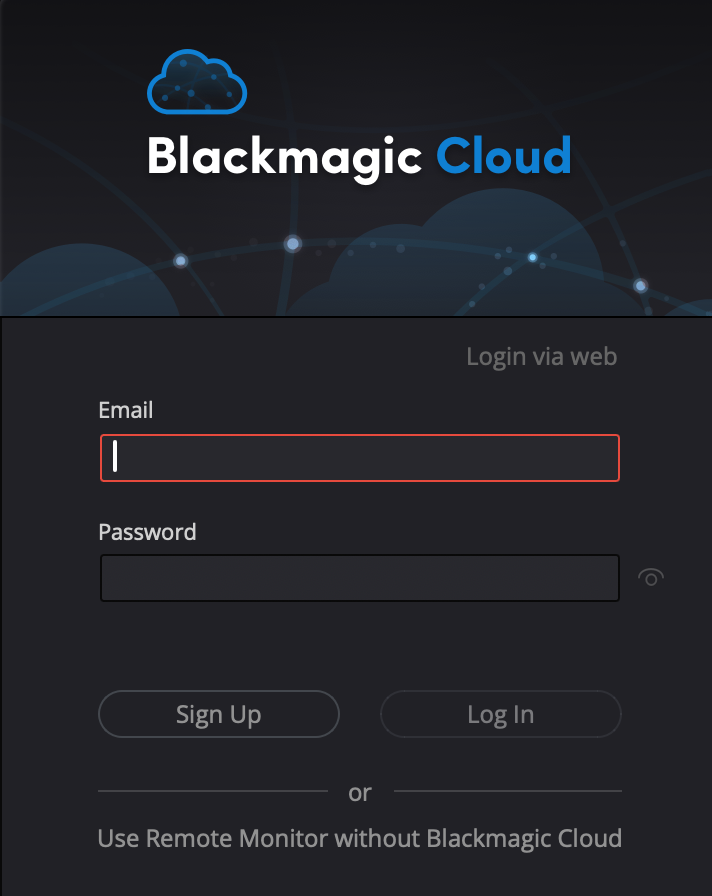
3. A small window will open at the bottom right. Sign in using the account you created in step# 1.
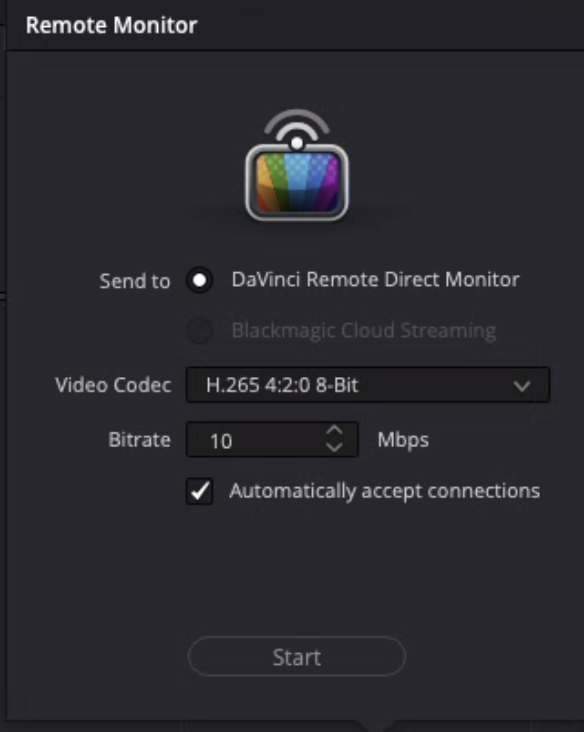
Select the video codec. H.264 is more compatible. H.265 has a slightly better quality at the same data rate. Indicate the desired data rate. It is highly recommended to keep it under 15 Mbps. 8-10 Mbps is sufficient for most applications.
Activate "Automatically accept connections". This is not necessary but recommended.
Click "Start"
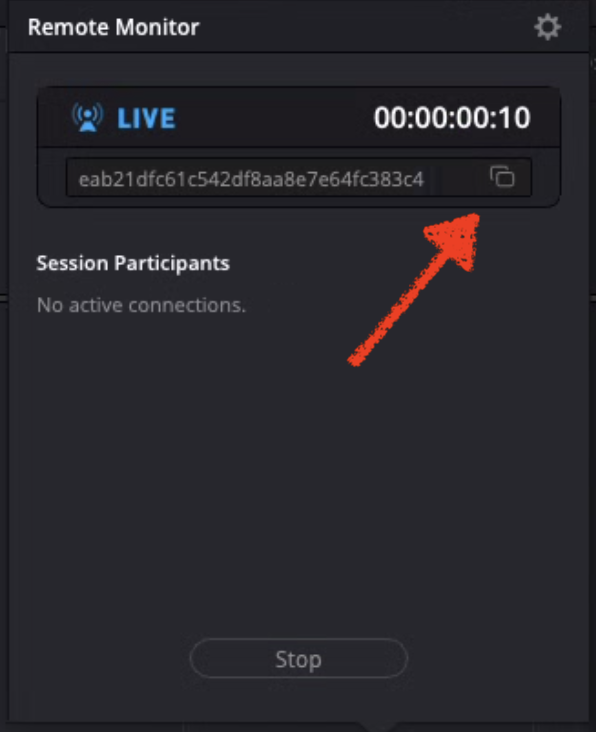
4. Copy the alpha-numeric code by clicking the box on the right:
5. On the local computer, open the app "DaVinci Remote Monitor" located in the same folder as DaVinci Resolve. Log in using the account created in step# 1.
6. Paste the code and click "Join". You should now see the stream from the remote computer on your local monitor.
Was this article helpful?
That’s Great!
Thank you for your feedback
Sorry! We couldn't be helpful
Thank you for your feedback
Feedback sent
We appreciate your effort and will try to fix the article